A simple inventory system needs only four things: a label on the shelf, the phone everyone already has, a withdrawal in one scan, and an alert before you run out. With Lagerdrift your staff record stock changes in the mobile app, and everyone sees the same stock both on the phone and in the web app on the PC. The system can do much more, but you do not have to use the rest: start with materials and locations, and let tools, projects and stock counts wait until you miss them.
Many people looking for a simple inventory system have already tried one that was too big. An ERP with a stock module that nobody on the team wants to log into, or inventory software with so many fields that withdrawals stopped being recorded after a week. What they actually want is simple inventory management that gets used. This article shows how to use Lagerdrift that way: what you set up, where you see the overview, what you can safely leave for later, and what the day looks like for the person collecting material.
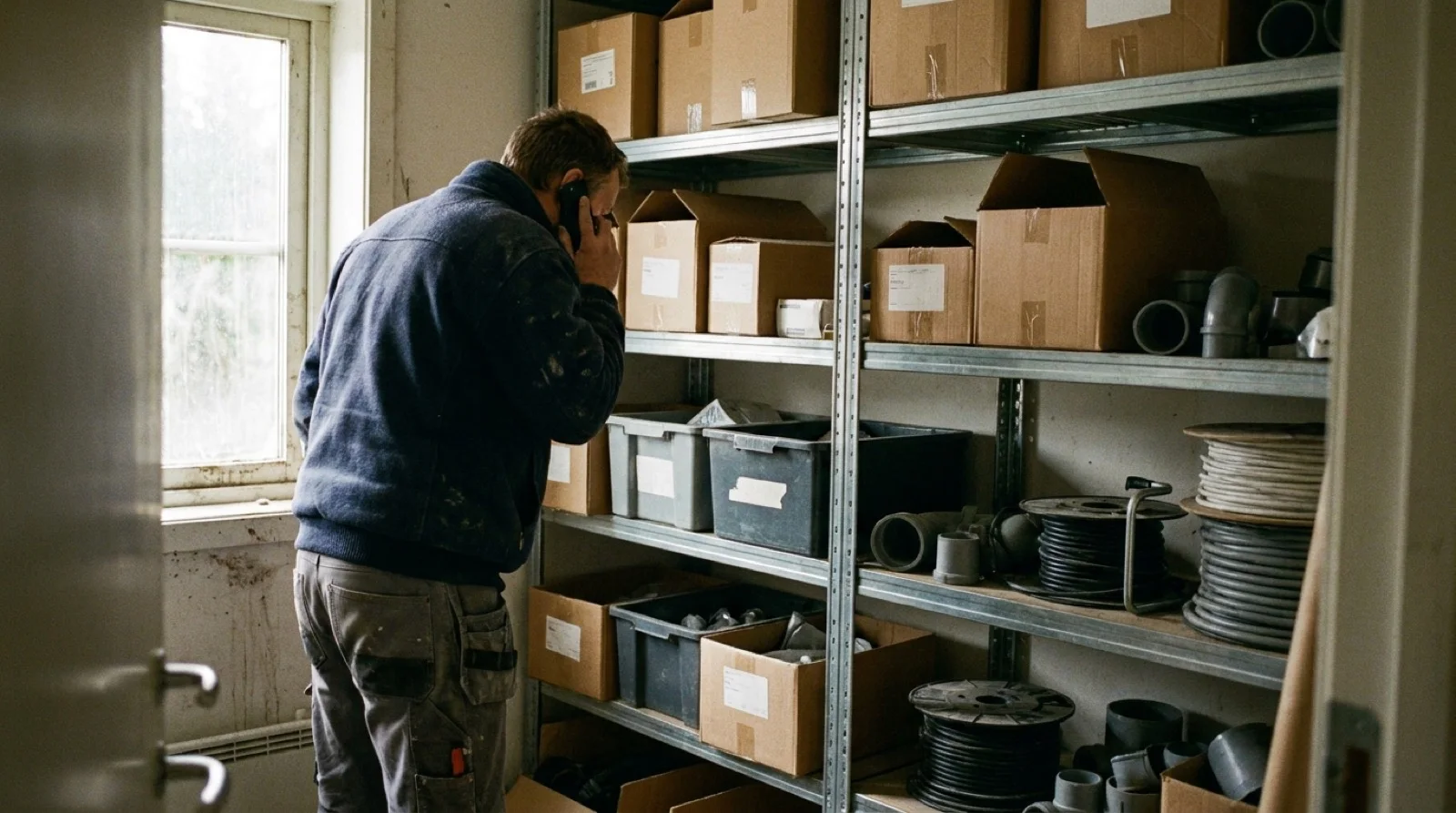
What is a simple inventory system?
Simple does not mean few features. It means the person taking from the stock does as little as possible, and the numbers are still right. Whether you call it an inventory system, inventory software or a stock management app, a simple one should do four things:
- Show what is where. Stock per storage location, whether that is a shelf, a cabinet or a service van, and the total stock per item.
- Record the withdrawal where the item is. With the phone, in a few seconds. A withdrawal that has to be entered later does not get entered.
- Remember who took what, and when. Every stock change becomes a row in the history with user and time.
- Warn you before you run out. A minimum on the items that stop a job, and an alert when the stock drops below it.
Everything else is optional. That is also why a spreadsheet is often a better choice than a big system: at least it does not make the day heavier. The problem with the spreadsheet is point two. Nobody stands at the shelf updating a sheet. More on that limit in Inventory management in Excel: when the spreadsheet stops working.
What the day looks like: one tap, one scan
For the person collecting material, Lagerdrift is a few buttons on the home screen of the mobile app, for example Remove stock, Add stock and Post to project. The buttons are favourites the user picks, or that the admin sets up. The whole routine for a withdrawal is this:
- Tap Material · Remove stock.
- Scan the QR label on the shelf. The barcode on the product works too, if it has been added to the material.
- Choose the amount and tap Remove stock. The app confirms with «Stock changed.» and shows the new stock.
That is all. Project and note are optional fields, unless the admin has made them mandatory. Restocking when goods arrive is the same routine with Add stock. No handheld scanner is needed: the phone camera is the scanner, on iOS and Android.
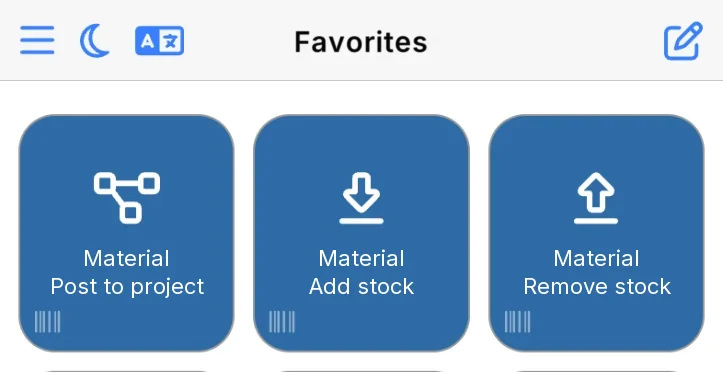
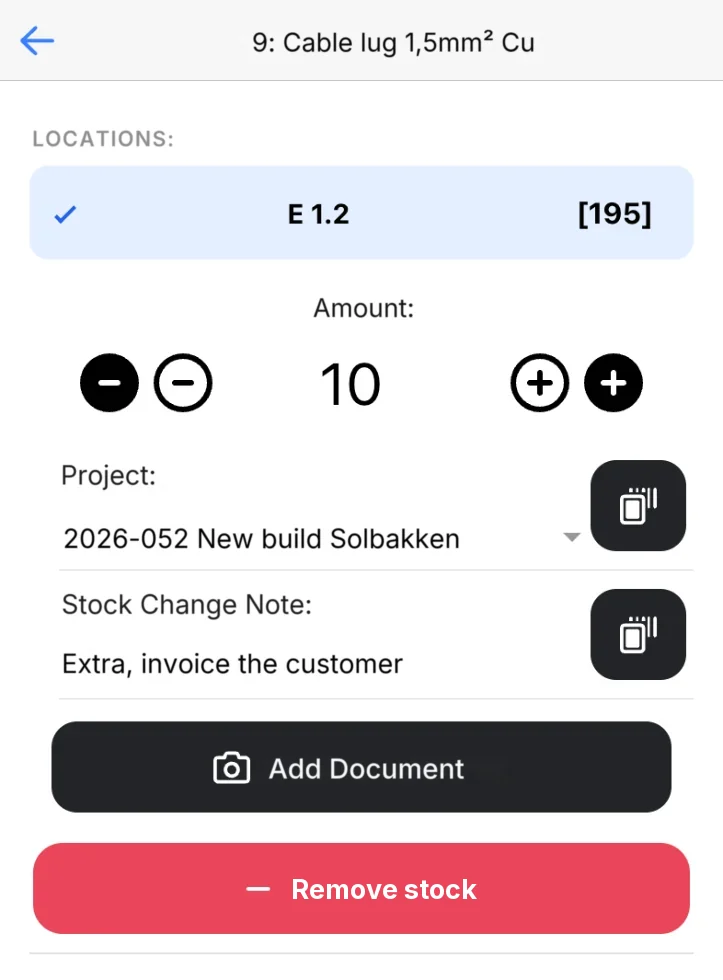
The full withdrawal routine, with project, note and transfers, is shown step by step in the guide Take materials to projects with your phone.
Overview in both the mobile app and the web app
Lagerdrift has two ways into the same stock: the mobile app and the web app in the browser. You sign in with the same user in both, and what is recorded on the phone shows up straight away on the PC. The overview does not live in one person's head or in a spreadsheet on one office computer.
On the phone: the answer where you stand
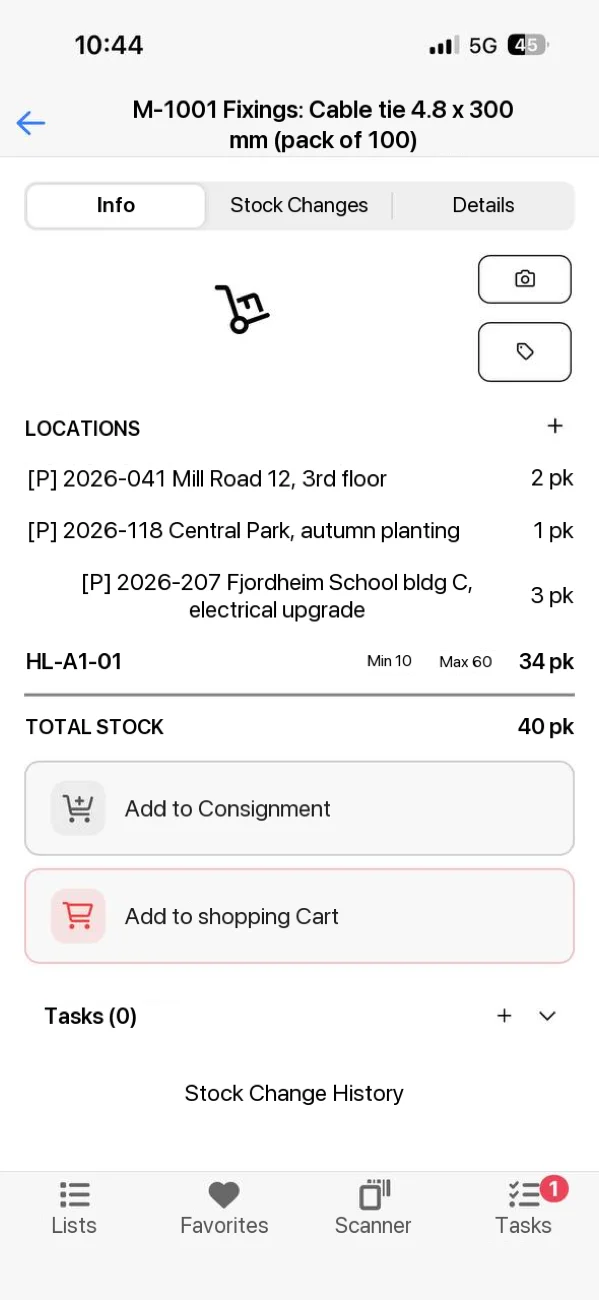
The mobile app is built for the question «do we have this, and where is it?». Under Lists, materials and tools each have their own tab, and the material list shows location, minimum and stock. Open a material, or scan its label, and you see:
- Stock per storage location: the shelf, the service van and the projects the material sits on, with minimum and maximum where they are set.
- Total Stock: the sum across all locations.
- Stock changes: the latest withdrawals and refills of this very material.
That is what replaces the phone round. Instead of calling the warehouse from the van, you look the material up and see the answer yourself.
In the web app: the whole picture on one screen
On the PC you see a lot at once. The web app runs in the browser, and there is nothing to install. It is where the manager or the buyer gets the overview:
- Dashboard: how many materials, tools and keys are in the system, the value of the material stock, and a chart of stock changes over the last 12 months.
- The material list: the whole stock in one table, with search, filters and the columns you choose. The Export button downloads the list exactly as it stands, as Excel, CSV, JSON or XML.
- History: under History → Stockchange History every withdrawal and every refill is a row, with material, amount, storage location, user and time.
- Setup and bulk work: importing items, QR labels, users and permissions are easiest here.

In a simple setup the split comes naturally: the staff record on the phone, and the person responsible for the stock keeps track in the browser. More on what is easiest on a big screen in the guide The web app: overview, administration and import.
Only the information you need
An inventory system quickly gets cluttered if everyone sees everything. In Lagerdrift you adjust the view so it stays simple and tidy:
- Choose the columns in the web app. The Columns tab on the right-hand edge of the list decides what is shown. If you only need number, name, location and stock, take the rest out. If you handle purchasing, bring in supplier and prices when you need them. The layout is saved on your user, so the list looks the same the next time you sign in.
- Adjust the mobile app per user. For each user the admin decides which buttons sit on the home screen, which storage locations the user sees, and what the user is allowed to do. The permissions control which menus and buttons appear in the app, so someone who only collects material does not get more information or more buttons than the job needs.
The result: the buyer sees prices and suppliers, while the fitter sees three buttons and a scanner. Same system, different view.
Keep it simple: what you can leave for later
Lagerdrift covers materials, tools, keys, projects, stock counts, serial numbers and an open API. A simple inventory system uses a small part of it. You can safely leave these until you miss them:
- Serial numbers, batch and reel. The Stock Tracking Type field defaults to Quantity, a plain number per storage location. It suits the vast majority of materials. Leave it as it is.
- Tools and keys. They are separate lists with their own logic, for things that come back. Start with the materials. The difference is explained in Tools or materials.
- Projects. Withdrawals without a project work perfectly well. If you later want to know what went to which job, add the projects then.
- A minimum on everything. Set a minimum only on the five to ten items that stop a job when they run out. Alerts on everything become alerts nobody reads.
- Fields you do not use. A material needs a name and a unit. Group, supplier, prices and photo can be filled in later, or never.
The most important lever is what the staff see, as described above. The Fitter / Technician role is a good starting point, because the user gets the mobile app only. But the role is made for fitters with their own service van: it makes the project mandatory and blocks withdrawals from the material's main storage location. In a simple setup where everyone takes from the same stock, the admin unticks those two settings and adds Remove stock and Add stock as favourites. The guide Take materials to projects with your phone shows how.
How do you set up a simple inventory system?
A stock of a few hundred items is usually up and running in one morning. The order that keeps it simple:
- Add the materials in the web app. If you have a list in Excel, use the Import button in the material list. One row per item with name, unit and location is enough.
- Create the locations that matter. The main warehouse, the shelves you actually search in, and each service van if you have them.
- Print QR labels. Tick the materials in the list, click the label icon in the action bar, and print on an ordinary printer. Stick the label on the shelf where the material is. How to: How to create and print QR codes for your materials.
- Create the users. Give those who collect material only the buttons they need, as described above. They download the app from the App Store or Google Play and sign in with their email.
- Set a minimum on the most important items. Not on everything.
If you want help, training and setup are free. We can enter the materials with you and set up the system the way that suits your team. The full setup with screenshots is in Getting started with Lagerdrift, and the short version in Inventory management in 5 minutes.

What Lagerdrift is not
A simple system is also honest about what it does not do. Lagerdrift is an inventory system, nothing more:
- Not accounting software or an ERP. Lagerdrift keeps stock, withdrawals and history, not the books. Data can be exported to Excel, CSV, JSON and XML at any time.
- No ready-made Shopify or WooCommerce connector. If you run a web shop and want the stock to update the shop automatically, that takes an integration through the open API, which comes with Pro and Enterprise.
- Not built to work offline for long. Some scanning flows hold on to the scans until you are back online, but the app needs a connection to record.
If you recognise yourselves in that list, we would rather say so now than after the trial.
What does a simple inventory system cost?
Lagerdrift is priced per plan, not per user, and the mobile app and the web app are included in every plan. Starter costs 289 euro a year for 1 to 3 users, about 3,300 kroner. Pro costs 789 euro a year for 4 to 10 users, about 8,900 kroner, and adds the open API with webhooks. Training, setup and support by email and phone are free in every plan, also after the trial. Prices are net of VAT. All plans are in the pricing section.
Try the simple setup for 30 days
Every feature, no card, no automatic charge afterwards. Add the 20 items you run out of most often, put up the labels, and see whether the staff actually scan.
Try free for 30 daysIn short
An inventory system does not become simple by having few features, but by keeping the day simple for the person collecting material. With Lagerdrift that means materials and locations, a QR label on the shelf, a few buttons on the phone and a minimum on the items that stop a job. You have the overview both in your pocket and on the PC. The rest is there when you need it.
Start with what you search for most often. When those numbers are right, take the rest.
Frequently asked questions
What is a simple inventory system?
An inventory system that does four things well: shows what is where, lets staff record withdrawals with the phone where the item is, remembers who took what, and warns before you run out. Everything beyond that is optional. A simple inventory system is not an ERP, and it needs neither handheld scanners nor a rollout project.
Can Lagerdrift be used as a simple inventory system?
Yes. Lagerdrift has many features, but you only use the ones you need. With materials, one label per shelf location and the Remove stock and Add stock buttons on the phone, you have a complete, simple inventory system. Tools, keys, projects and stock counts can be switched on later, or never.
Can we see the stock both on the phone and on the PC?
Yes. Lagerdrift has a mobile app for iOS and Android and a web app in the browser, with the same data in real time. On the phone you see the stock per location of one material where you stand. On the PC you have the dashboard, the whole material list with search and filters, and the history of every withdrawal and refill.
Can we hide columns and buttons we do not need?
Yes. In the web app you choose which columns the list shows, and the layout is kept for next time. In the mobile app the admin decides per user which buttons sit on the home screen and what the user has access to. That way each user only sees what the job needs.
Do the staff have to learn the whole system?
No. The admin decides what each user sees. Someone who only collects material can get the mobile app with a few buttons on the home screen, for example Remove stock and Add stock, and nothing else. The routine is one tap, one scan, the amount and Remove stock.
Do we need handheld scanners or special labels?
No. The phone camera is the scanner, on iOS and Android. You create the QR labels yourself in the web app and print them on an ordinary printer. If the product already has a supplier barcode, it can be added to the material and scanned directly.
What does a simple inventory system like Lagerdrift cost?
Starter costs 289 euro a year for 1 to 3 users, about 3,300 kroner. Pro costs 789 euro a year for 4 to 10 users, about 8,900 kroner. Training, setup and support by email and phone are free in every plan. Prices are net of VAT, and the first 30 days are free with no card.
What does Lagerdrift not do?
Lagerdrift does not keep the books and is not an ERP. It has no ready-made Shopify or WooCommerce connector, and the app needs a connection to record. If that is what you need, Lagerdrift alone is not the right choice.